
Last updated: July 2026 by Rishi Jain, Performance Marketing Trainer at Digital Scholar and CEO of echoVME Digital. This guide covers Meta Business Suite vs Ads Manager for engagement campaigns, including the Lead Center CRM, Creator Marketplace, and content scheduling tools.
One of the most common questions I get in my Digital Scholar MBA cohort is this: “Rishi, I can boost a post from Business Suite AND run the same campaign from Ads Manager. Which one should I use?” It seems like a simple question. The answer changes how you run every engagement campaign from this point forward.
Here is what no one tells you upfront. Meta Business Suite and Ads Manager are not competing tools. They are two layers of the same system, designed for different depths of work. Business Suite is the front counter. Ads Manager is the engine room. When you understand what each one is actually built for, you stop making the rookie mistake of boosting posts and start building real engagement campaigns that give you data you can act on.
At echoVME, I have managed Meta campaigns for over 200 brands across categories including education, real estate, beauty, and retail. I have seen what happens when marketers confuse the two tools. They either over-engineer simple promotions, or they under-build campaigns that should have proper targeting. Both are expensive mistakes. In this post, I am going to show you exactly how we use each interface at echoVME, and how I teach this framework to Digital Scholar students in my live performance marketing sessions.
In this guide you will learn the difference between Meta Business Suite and Ads Manager, understand every major feature inside Business Suite (Inbox, Lead Center, Content Scheduler, Creator Marketplace), learn when to boost vs when to build a proper engagement campaign, understand how echoVME manages Rs 50 lakh per month in Meta ad spend, and learn how to add team members with the right access levels. Everything here comes from live Digital Scholar cohort sessions, not theory.
- What is Meta Business Suite and How is it Different from Ads Manager?
- Business Suite vs Business Manager: Stop Confusing These Two
- The Unified Inbox: Managing FB, Instagram, and Messenger in One Place
- Meta Lead Center: Your Built-In CRM for Lead Management
- Content Scheduling: The Free Tool Inside Business Suite
- Creator Marketplace: Finding and Working with Influencers
- Boost Post vs Ads Manager: Which Should You Use for Engagement?
- Understanding Meta Credit Lines and Post-Paid Billing
- How to Add Team Members with Correct Access Levels
- Why Your Business Suite Looks Different from Mine
- Setting Up an Engagement Campaign the Right Way in Ads Manager
- Frequently Asked Questions
What is Meta Business Suite and How is it Different from Ads Manager?
Meta Business Suite is the full management interface for your Facebook and Instagram business presence, accessible at business.facebook.com. It combines advertising, content management, inbox, leads, and influencer discovery into one dashboard. Ads Manager is a dedicated tool within that ecosystem focused exclusively on creating and optimizing paid campaigns with precision targeting and detailed reporting.
Think of it this way. Business Suite is the office building. Ads Manager is the campaign operations room on the fourth floor. You access Ads Manager from inside Business Suite, but the two tools serve different purposes. Business Suite gives you the big picture view of your business on Meta’s platforms. Ads Manager gives you granular control over every rupee you spend on advertising.
At Digital Scholar, I spend a full session just walking cohort students through Business Suite before we ever open Ads Manager. The reason is simple: most people jump straight into campaign creation without understanding the infrastructure around it. That leads to messy accounts, disconnected data, and campaigns that look fine in the interface but produce results no one can explain.
Here is what is inside Meta Business Suite at a glance:
| Feature | What It Does | Who Uses It Most |
|---|---|---|
| Ads | Shortcut to Ads Manager for campaign creation | Performance marketers, media buyers |
| Inbox | Unified inbox for FB messages, IG DMs, Messenger | Community managers, sales teams |
| Content | Schedule posts and stories across FB and IG | Social media managers, content creators |
| Lead Centre | Built-in CRM for managing leads from Lead Ads | Sales teams, education, real estate |
| Creator Marketplace | Discover and collaborate with influencers | Brand managers, campaign planners |
| Insights | Organic reach, page performance, audience data | Content strategists, brand teams |
Key insight: Ads Manager and Business Suite are not either-or. Every Meta advertiser should be comfortable navigating both, because some functions (like viewing lead CRM data or scheduling organic content) only live in Business Suite, not in Ads Manager.
Business Suite vs Business Manager: Stop Confusing These Two
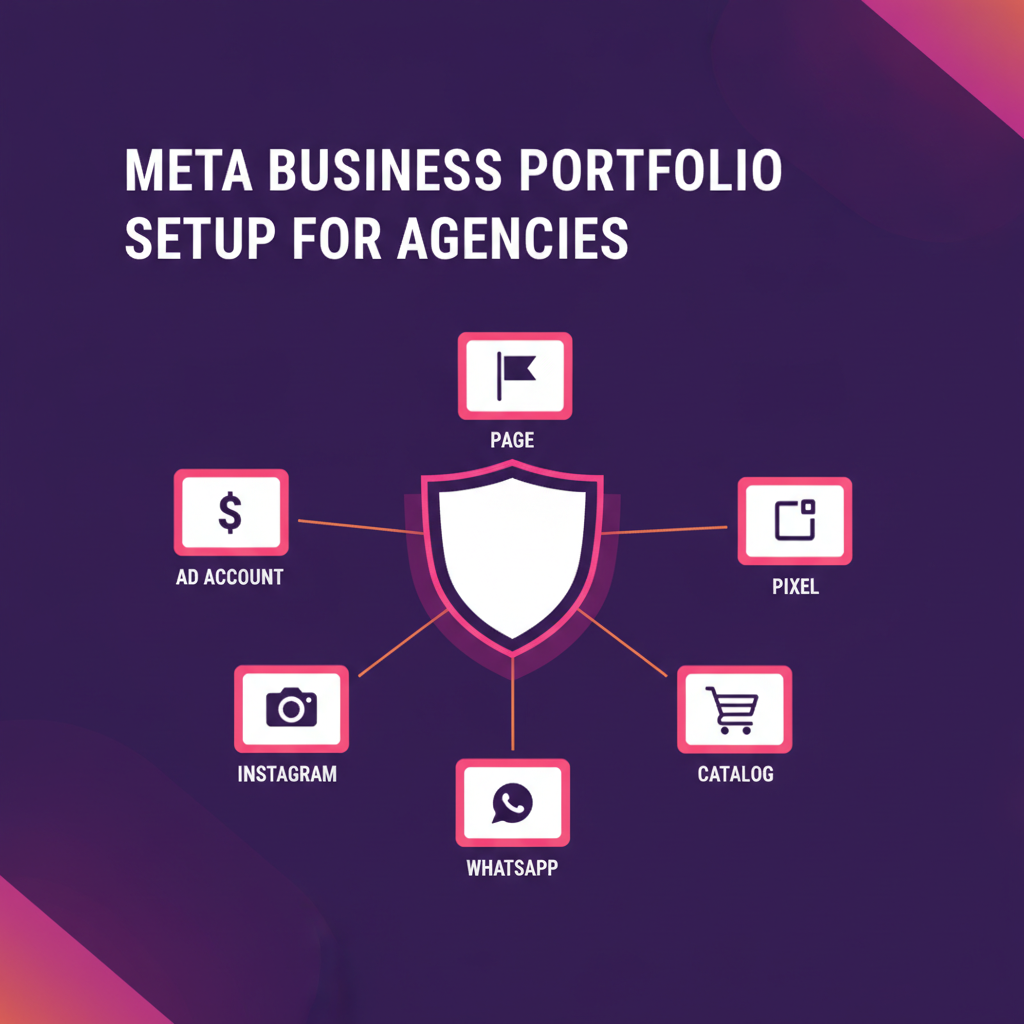
Business Manager is not a separate product. It is the settings and infrastructure layer that lives inside Meta Business Suite, accessed by clicking the gear icon in the navigation. Business Suite is what you see and use daily. Business Manager is where you configure the account structure underneath it.
This is one of the most common points of confusion I see among new students at Digital Scholar. They come in having watched YouTube tutorials from two or three years ago, when Business Manager was a separate URL (business.facebook.com/settings) that you navigated to directly. Meta rolled that experience into Business Suite, and now Business Manager is simply the settings section.
What does Business Manager (the settings layer) let you do? It is where you connect your Facebook Page, your Instagram account, your ad accounts, your pixels, and your team members. It is the plumbing. You set it up once, you make changes when your team structure changes, and then you mostly work inside Business Suite and Ads Manager for day-to-day operations.
| Aspect | Meta Business Suite | Business Manager (Settings) |
|---|---|---|
| Access | business.facebook.com main dashboard | Gear icon inside Business Suite |
| Purpose | Daily operations (content, ads, inbox, leads) | Account configuration and permissions |
| Frequency of use | Daily | Occasionally (setup, team changes) |
| Key tasks | Scheduling posts, running ads, managing leads | Adding people, connecting assets, billing |
| Visibility | Full interface for all team roles | Admin and editor access only |
One practical thing to know: when you are onboarding a new client at echoVME, the first thing we do is go into Business Manager settings to verify all assets are connected. Is the pixel linked to the right ad account? Is the Instagram account connected? Are the right pages associated? If these connections are broken, campaigns will not track correctly, and you will spend three days debugging what is actually a 5-minute settings fix.
The Unified Inbox: Managing FB, Instagram, and Messenger in One Place
The Inbox inside Meta Business Suite combines Facebook messages, Instagram DMs, and Messenger conversations into a single feed so your team does not have to jump between three separate apps to respond to customers. For any brand running engagement campaigns, this is where the real work happens after someone interacts with your content.
When you run an engagement campaign on Meta, the goal is not just to get likes and shares. The goal is to start conversations that eventually convert. If you are running a Digital Scholar-style education campaign or an echoVME client campaign for a salon or real estate brand, the engagement on your posts and ads will generate DMs. Without a unified inbox, those DMs get lost across platforms and response time drops. Slow response time kills conversion rates on lead generation campaigns.
In my experience managing accounts at echoVME, brands that actively respond to DMs within the first 2 hours of a campaign launch see 40 to 60 percent higher conversion rates on follow-up compared to brands that respond after 24 hours. The Unified Inbox makes that fast response operationally possible for a team.
You can also set up automated responses, away messages, and instant reply templates inside the inbox settings. For Digital Scholar campaigns, we use instant replies to send an automated message the moment someone DMs during an active campaign, so they feel heard immediately even if no one is online to respond manually.
Meta Lead Centre: Your Built-In CRM for Lead Management
Meta Lead Centre is a simple built-in CRM inside Business Suite that automatically captures leads from your Lead Generation campaigns and lets you move them through three stages: Intake (new leads not yet contacted), Qualified (leads you have spoken to and confirmed interest), and Converted (leads who have become customers). For small businesses running their first lead campaigns, this is genuinely useful before they have a dedicated CRM like HubSpot or Zoho.
Here is the important thing to understand about Lead Centre: it only captures leads that come through Meta Lead Ads directly. If your lead campaign sends people to a landing page and they fill a form there, those leads do not automatically appear in Lead Centre. They go to whatever backend system your landing page is connected to.
At Digital Scholar, I teach students to use Lead Centre as a first step in the lead management journey, not a final destination. The three stages (Intake, Qualified, Converted) are enough to manage a small campaign or a client’s early months on Meta. As campaigns scale and lead volume increases, you should migrate to a proper CRM and connect it via Zapier or direct API integration. For echoVME clients managing 500 to 1000 leads per month from Meta campaigns, we use a dedicated CRM with auto-routing, not Lead Centre.
| Stage | What It Means | Action Required |
|---|---|---|
| Intake | New lead just captured from Lead Ad form | Call or WhatsApp within 2 hours |
| Qualified | Lead has expressed genuine interest after first contact | Schedule a follow-up or demo |
| Converted | Lead has become a paying customer | Move to onboarding, mark as won |
One feature Digital Scholar students find useful: you can export leads from Lead Centre as a CSV and upload them to your own spreadsheet or CRM. Meta does not make this automatic, so build a habit of exporting daily if you are actively running lead campaigns. Leads that sit uncontacted for 24 hours see a significant drop in conversion rates.
Content Scheduling: The Free Tool Inside Business Suite
Meta Business Suite includes a free content scheduling tool that lets you plan and schedule posts, stories, and reels for both Facebook and Instagram from one calendar view. You do not need Buffer, Hootsuite, or any third-party scheduler for basic scheduling needs. This tool handles it natively, and it is completely free regardless of your ad spend level.
For the Digital Scholar student who is managing a personal brand or a small business client on a tight budget, this is a meaningful saving. Third-party scheduling tools can cost anywhere from Rs 1,500 to Rs 8,000 per month depending on the plan. The native tool in Business Suite may not have every advanced feature, but it covers the essential scheduling workflow: write post, pick date and time, select accounts, schedule.
One important note for engagement campaigns specifically: if you are testing which content types drive the most engagement before investing in paid campaigns, the content scheduler combined with Business Suite’s Insights tab gives you a reasonable organic baseline. At echoVME, before we recommend an engagement objective campaign to a new client, we review 30 days of organic post performance to understand which content formats that audience actually responds to. The content scheduler makes it easy to maintain a consistent posting cadence during that observation period.
Practical limitations to know: you cannot schedule Instagram collaborative posts or certain Reel formats through the native scheduler as of mid-2026. For those content types, you will need to post manually or use a third-party tool that has the specific API access Meta has granted them.
Creator Marketplace: Finding and Working with Influencers Directly on Meta
Creator Marketplace inside Business Suite is Meta’s native platform for discovering Instagram creators and initiating collaboration campaigns. Brands can filter creators by category, audience size, location, engagement rate, and audience demographics, then send partnership requests directly through the platform without going through external influencer agencies.
This is genuinely underused. Most brands I work with at echoVME are spending Rs 15,000 to Rs 50,000 per month on influencer discovery tools or agency fees when Creator Marketplace gives them equivalent search capabilities for free. For Digital Scholar students who are learning to run campaigns for clients, knowing Creator Marketplace exists puts an additional service in your toolkit: influencer identification and outreach at no tool cost.
The way it works is straightforward. You open Creator Marketplace from the Business Suite navigation, filter for creators in your brand’s niche and geography, review their follower counts and engagement rates, and send a partnership request. If the creator accepts, you can set up a Branded Content campaign that shows their post in your ad campaigns (sometimes called Influencer Whitelisting). This combination of organic creator content plus paid amplification via Meta Ads consistently outperforms both pure organic influencer posts and standard ad creatives in terms of engagement rates and cost-per-engagement.
At echoVME, for clients in the beauty and lifestyle categories, we run Creator Marketplace campaigns targeting micro-influencers (10,000 to 80,000 followers) in specific Chennai neighborhoods before scaling to broader geographies. The engagement rates on these campaigns are typically 3 to 5 times higher than standard ad creatives on cold audiences.
Boost Post vs Ads Manager: Which Should You Use for Engagement?
Boosting a post from Business Suite is the right choice when you want quick promotion of a piece of content with simple targeting and you do not need granular control. Using Ads Manager to build a proper engagement campaign is the right choice when you need precise audience targeting, A/B testing, specific placement control, campaign-level budgeting, and data that feeds into your retargeting funnel. The two paths produce different quality outcomes for different use cases.
Here is the practical breakdown. When you boost a post from Business Suite, Meta gives you three simplified targeting options: people who like your page, people in a geographic area, or a basic custom audience. You pick a budget, pick a duration, and Meta handles everything else. It is fast, it requires almost no setup, and it gets your content in front of more people. The problem is that “more people” is a vague optimization. Meta is optimizing for reach and engagement, but you have limited control over who those people are and what happens with that data afterward.
When you build an engagement campaign inside Ads Manager, you get access to Advantage+ Audience, detailed interest targeting, custom and lookalike audiences, placement-level control (Feed vs Reels vs Stories separately), CBO or ABO budget strategies, and the ability to run multiple ad sets to test different audiences simultaneously. The data from a properly built engagement campaign feeds into your retargeting audiences via the pixel and can be used to build custom audiences of people who watched your video, clicked your link, or interacted with your page. A boosted post gives you none of this by default.
| Factor | Boost Post | Ads Manager Engagement Campaign |
|---|---|---|
| Setup time | 2-3 minutes | 15-30 minutes |
| Audience control | Basic (location, page fans, simple interests) | Full (custom audiences, lookalikes, detailed interests) |
| Targeting precision | Low | High |
| Retargeting data | Limited | Full pixel tracking and audience building |
| Budget strategy | Daily or lifetime, no CBO | CBO or ABO with full flexibility |
| A/B testing | Not available | Full A/B and Advantage+ testing |
| Best for | Quick content promotion, brand awareness bursts | Systematic engagement strategy, funnel building |
| Cost efficiency | Lower (less competition for simple inventory) | Higher (better long-term ROAS from retargeting) |
Key insight: For Digital Scholar students working on client campaigns, the rule is simple. Boost posts only for content you want more people to see organically. Build Ads Manager campaigns for every campaign where you care about what happens after the click. Boosting is a megaphone. Ads Manager is a targeting system.
Understanding Meta Credit Lines and Post-Paid Billing
Meta offers two billing models for ad accounts: prepaid (you add money and ads run until the balance is used up) and post-paid via a credit line (Meta extends a credit limit and bills you monthly). Most new advertisers start on prepaid. Agencies and high-spend accounts can qualify for a credit line that allows them to run campaigns without pre-loading funds and settle the bill at the end of the billing cycle.
At echoVME, we operate on a post-paid credit line with Meta. Our current credit limit is Rs 50 lakh per month, which means we can run up to Rs 50 lakh in campaigns within a billing cycle before Meta requires payment. This billing structure is significant for agencies because it eliminates cash flow friction. You do not need to pre-fund accounts before launching a campaign. You run the campaigns, generate results for clients, bill the clients, and settle with Meta when the invoice comes.
For Digital Scholar students who are starting out as freelancers or agency founders, credit lines are not available immediately. Meta typically requires 6 to 12 months of consistent ad spend history and a good payment record before extending a credit line. Until then, prepaid billing is the default. The practical implication: budget your client retainers to include a component that covers Meta ad spend upfront, because you will be paying before you bill the client.
One important operational note: Meta has strict rules about payment method failures. If a payment fails on your ad account, Meta will pause all active campaigns immediately. For agencies managing multiple clients from one billing account, this can be catastrophic. Always keep a backup payment method on file and monitor your credit utilization against your credit line limit if you are on post-paid billing.
How to Add Team Members with Correct Access Levels
Adding team members to a Meta Business Suite account is done by sending an email invitation through Business Manager settings, and each member can be given different access levels at the asset level: Full Control (admin), Standard Access (can manage campaigns and ads), or Analyst (read-only reporting). Getting this right from day one prevents both security issues and operational bottlenecks on client accounts.
The most important thing to understand about Meta’s permission system is that access is asset-specific, not account-wide by default. You can give someone Full Control over one ad account while giving them only Standard Access to a different ad account, and no access at all to a third ad account. This granularity matters when you are managing multiple clients from a single Business Suite and you need to give each client’s team members visibility into only their own data.
Learn performance marketing from a practitioner who has spent Rs 50 crore+ on Meta campaigns
At Digital Scholar, our MBA cohort is taught by three experts: Rishi Jain (Performance Marketing and Meta Ads), Sorav Jain (Social Media and Personal Branding), and Karthikeyan Maruthai (SEO). You learn by doing, not by watching slides.
Frequently Asked Questions
What is the difference between Meta Business Suite and Meta Ads Manager?
Meta Business Suite is the full management dashboard for your Facebook and Instagram business presence, including content, inbox, leads, and advertising. Ads Manager is a specialized tool within that ecosystem focused on creating, managing, and optimizing paid advertising campaigns. Business Suite is your daily operations interface. Ads Manager is where you build and monitor campaigns with granular targeting and reporting.
Should I boost a post or use Ads Manager for engagement campaigns?
Use Boost Post for quick content promotion when you do not need precise targeting or retargeting data. Use Ads Manager for any engagement campaign where you care about audience quality, want to run A/B tests, need to build custom audiences from the engagement data, or are managing a significant budget. For client campaigns at echoVME, we use Ads Manager for almost all engagement campaigns and reserve Boost Post only for organic amplification of exceptional content.
What is Meta Lead Centre and how is it different from a CRM?
Meta Lead Centre is a basic built-in CRM inside Business Suite that captures leads from Meta Lead Ads and lets you move them through Intake, Qualified, and Converted stages. It is free and requires no external setup. A dedicated CRM like HubSpot, Zoho, or Salesforce offers significantly more functionality including automation, email sequences, detailed reporting, and multi-channel tracking. Lead Centre is a good starting point for businesses running their first lead campaigns. Once you are generating more than 100 leads per month, a proper CRM is worth the investment.
How do I get a Meta credit line for my agency?
Meta extends credit lines to accounts with a consistent spend history, good payment record, and sufficient account age, typically 6 to 12 months of active advertising. You apply through your Meta representative or via the billing settings in Business Manager. At echoVME, our Rs 50 lakh credit line was extended after demonstrating consistent monthly spend across multiple client accounts over more than a year. New accounts start on prepaid billing and earn credit line access through spend history.
What access level should I give a client in my Business Suite?
For most client relationships, give the client’s marketing lead Standard Access (which allows them to view and review campaigns without making changes) and give their reporting stakeholders Analyst access. Keep Full Control limited to your own agency team leads. At echoVME, this three-tier structure prevents clients from accidentally pausing campaigns while maintaining full transparency about what we are doing with their budget.
What is Creator Marketplace in Meta Business Suite?
Creator Marketplace is Meta’s native influencer discovery platform inside Business Suite. It allows brands to search for Instagram creators by category, location, follower count, and engagement rate, then send collaboration requests directly. It is free to use and supports Branded Content campaigns where creator posts can be amplified via paid Meta Ads. For echoVME clients in lifestyle and beauty categories, Creator Marketplace-sourced micro-influencer campaigns deliver 3 to 5 times higher engagement rates than standard ad creatives on cold audiences.
Why does my Business Suite look different from what my trainer shows?
Meta rolls out new features in batches across accounts. The interface you see depends on your account type, geographic location, spend history, and account age. It is common for 20 to 30 percent of Digital Scholar cohort students to be missing at least one feature visible on the instructor’s screen during a live session. This is normal. New features typically reach all accounts within 4 to 8 weeks of initial rollout. High-spend agency accounts like echoVME generally receive new features earlier than new or low-spend accounts.
Questions or corrections? DM me on Instagram @rrishijain or leave a comment below. I read every message from Digital Scholar students and fellow marketers.