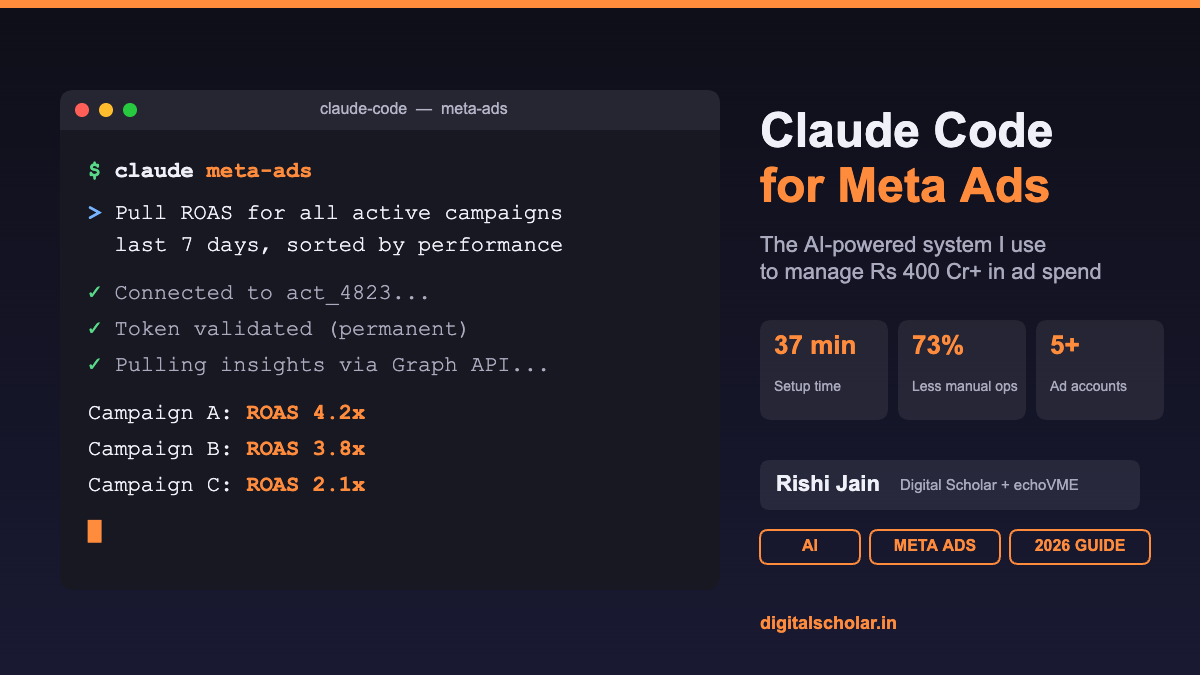

I run performance marketing at echoVME Digital. Over Rs 400 crore in ad spend across 500+ brands in 14+ industries. Every single day, my team logs into Meta Ads Manager, clicks through 9 screens just to duplicate a campaign, waits for the interface to load, and pulls reports that could be done in 3 seconds.
That is the old way.
The new way? You open your terminal, type a sentence in plain English, and Claude Code creates your campaign, pulls your ROAS data, pauses underperformers, and scales winners. All without touching Ads Manager once.
In this guide, you will learn the exact step-by-step system I set up at my own agency to connect Claude Code to my Meta ad account. The same setup my team uses daily to manage live campaigns.
This is not a future concept. I set it up for my own agency. It works right now. And you can get it running in under 37 minutes.
What Is Claude Code and Why Should Marketers Care?
Claude Code is Anthropic’s command-line tool (CLI). You give it instructions in plain English, and it writes code, runs scripts, and executes tasks directly from your terminal.
For marketers, this changes everything.
Instead of clicking through Ads Manager for 23 minutes to launch a campaign, you tell Claude Code: “Create a conversion campaign targeting 25 to 34 year old women in Mumbai interested in skincare. Daily budget Rs 500. Use the creative from last week’s top performer.”
It does it. In seconds.
But Claude Code cannot do any of this unless you connect it to your Meta ad account first. That connection is what this entire guide is about.
What You Need Before Starting
Here is your pre-flight checklist. If you are missing any of these, set them up first and come back.
- A Meta Business Portfolio with an ad account and Facebook Page connected to it. If you do not have one, ge to business.facebook.com and set it up. Takes 7 minutes.
- Your Ad Account ID in the format act_XXXXXXXXX. You will find this inside Business Settings under Accounts then Ad Accounts. Save it somewhere accessible.
- Claude Code installed and working on your machine. You need Node.js and a Claude Pro or Team subscription. If you have not installed it yet, check Anthropic’s official docs first.
Got all three? Good. Let us build this.
Step 1: Create a Meta App on the Developer Platform
This is where 90% of tutorials lose people. They say “create an app” and move on. I am going to walk you through every click.
Go to developers.facebook.com. Log in with the same Facebook account that owns your Business Portfolio. This is critical. If you use a different account, the permissions will not carry over later.
Inside the Developer Dashboard
Click “My Apps” in the top navigation bar. Hit “Create App.” You will land on an “App Details” screen. Fill in two things: your app name (something simple like “AI Ad System” or “Claude Ads Bot”) and your contact email.
Click Next.
Now you will see a “Use Cases” screen. This is where Meta asks what you want to do with the app. Select “Ads and monetization” on the left panel. Then check these three use cases:
- Create and manage ads with Marketing API
- Measure ad performance data with Marketing API
- Capture and manage ad leads with Marketing API
Click Next. Select your Business Portfolio from the dropdown. Click “Create App.”
You should now be looking at your app dashboard. That took about 4 minutes. On to the important part.
Step 2: Create a System User (This Is Where the Magic Happens)
Here is something I wish someone told me when I first set this up. Your personal Facebook access token expires every 60 days. For an automated system, that is useless. You would have to reconnect Claude Code every two months.
System Users solve this problem completely.
A System User is a special Meta account designed for automated tools. Their tokens never expire. They are not tied to your personal login. And they can have admin-level access to your ad account.
How to Create One
Go to business.facebook.com. Click the gear icon (Business Settings) in the bottom left. In the left sidebar, navigate to Users, then System Users. Click “Add.”
Name it something recognizable. I use “Claude AI” for mine. You could use “Ad System Bot” or whatever makes sense for your setup.
Set the role to Admin. This is important. If you set it to Employee, you will not have full campaign management access later.
Click “Create System User.” Done.
Step 3: Assign Assets to the System User
This is the step most guides skip entirely. And it is the #1 reason people get “No permissions available” errors later. The system user needs access to your app, ad account, and page BEFORE you generate a token. Not after. Before.
Still on the System Users page, click on the system user you just created. Click the three-dot menu and select “Assign assets.”
You need to assign three things:
Asset 1: Your App
Select “Apps” as the asset type. Find the app you created in Step 1. Give it Full Control. Click Save.
Asset 2: Your Ad Account
Select “Ad Accounts” as the asset type. Find your ad account. Give it Full Control. Click Save.
Asset 3: Your Facebook Page
Select “Pages” as the asset type. Find the Page connected to your ad account. Give it Full Control. Click Save.
Go back and click on your system user. Check the “Assigned Assets” tab. You should see all three listed with “Full Access.” If any of them shows partial access or is missing, fix it now. Otherwise the token generation will fail or give you a crippled token.
Step 4: Generate Your Permanent Access Token
This is the step that gives Claude Code its power. The access token is basically a password that lets Claude Code talk to Meta’s servers on your behalf.
Still on the System Users page, click on your system user. Click “Generate Token.” Select the app you created in Step 1 from the dropdown.
Set token expiration to “Never.” This is the whole point of using a System User. Personal tokens expire in 60 days. System User tokens are permanent until you manually revoke them.
Permissions to Select
Check these five permissions:
- ads_management lets Claude create and edit campaigns, ad sets, and ads
- ads_read lets Claude pull performance data and insights
- business_management lets Claude manage account-level settings
- pages_read_engagement lets Claude read page data for ad context
- pages_manage_ads lets Claude create ads that reference your Page
Click “Generate Token.”
A long string of characters appears. Copy this immediately. You will not see it again. Meta shows it once. If you lose it, you will have to generate a new one.
Save it in a password manager. Or a .env file on your machine. Or at minimum, a secure note. Do not paste it in Slack, email it to yourself, or leave it in a Google Doc. This token has full access to your ad account.
Step 5: Set Up the MCP Server Files
Now we bridge the gap between Meta’s API and Claude Code. The MCP (Model Context Protocol) server is what makes Claude Code understand Meta’s ad system. Without it, Claude Code is just a coding tool. With it, Claude Code becomes your ad operations assistant.
What Is an MCP Server?
Think of it this way. Claude Code is brilliant at understanding instructions and writing code. But it does not natively know how to talk to Meta’s API. The MCP server teaches it. It is a configuration layer that tells Claude Code: “Here are the tools you have. Here is how to create a campaign. Here is how to pull ROAS data. Here is how to pause an ad set.”
I call this the API Bridge Pattern. Your AI agent (Claude Code) connects to an API (Meta Marketing API) through a translation layer (MCP server). This pattern works for Google Ads, LinkedIn Ads, CRMs, and basically any platform with an API.
Installing the Files
Download the lesson resources (the zip file attached to this module). Unzip it. You will find two files: meta-ads-setup-SKILL.md and server.py.
Open your terminal and create the folder structure:
mkdir -p ~/.claude/skills/meta-ads-setup/referenceCopy meta-ads-setup-SKILL.md into ~/.claude/skills/meta-ads-setup/SKILL.md
Copy server.py into ~/.claude/skills/meta-ads-setup/reference/server.py
These files give Claude Code the blueprint for every Meta Ads operation it can perform.
Step 6: Connect Everything Inside Claude Code
This is the final step. Everything clicks together here.
Open your terminal. Launch Claude Code. Type the command:
/meta-ads-setupThe setup wizard kicks in. It will ask for two things:
- Your access token from Step 4. Paste it in.
- Your Ad Account ID in the
act_XXXXXXXXXformat.
The wizard validates your token against Meta’s API, installs the MCP server config, and writes the connection file. When it finishes, exit Claude Code and reopen it.
That is it. Claude Code now has full access to your Meta ad account.
What Can You Actually Do With This?
Once connected, you can do everything you would normally do in Ads Manager, but from your terminal in plain English. Here are real commands I use daily at echoVME Digital:
- “Pull my campaign performance for the last 7 days, sorted by ROAS”
- “Pause all ad sets with a cost per lead above Rs 500”
- “Create a new conversion campaign targeting 28 to 40 year olds in Chennai interested in digital marketing courses”
- “Show me the top 5 performing creatives this month by CTR”
- “Duplicate my best performing ad set and increase the budget by 30%”
Each of these would take 5 to 12 clicks in Ads Manager. With Claude Code, it takes one sentence. Multiply that across 500+ brands and you start to see why this matters.
The 5 Mistakes That Will Break Your Setup
I have seen students and junior marketers at my agency mess up this setup dozens of times. Save yourself the frustration. Here is what goes wrong:
- Generating the token before assigning assets. This is the classic one. If you generate the token first, the permissions do not attach properly. You will get a token that looks valid but cannot actually create campaigns. Always assign app, ad account, and page to the system user first. Then generate.
- Using a personal access token instead of a system user token. Personal tokens expire every 60 days. You will be halfway through a campaign automation and suddenly everything stops working. System user tokens are permanent. There is no reason to use personal tokens for this.
- Setting the system user role to “Employee” instead of “Admin.” Employee role gives you read access and limited write access. You will not be able to create campaigns or modify budgets. Always set it to Admin.
- Logging into the developer portal with a different Facebook account. The account that creates the app must be the same one that owns the Business Portfolio. If they are different accounts, the asset assignment step will show empty lists and you will think the system is broken.
- Not restarting Claude Code after setup. The MCP server config loads when Claude Code starts. If you do not restart it after running the setup wizard, Claude Code will not see the new connection. Close the terminal. Reopen it. Launch Claude Code fresh.
Why This Is the Future of Performance Marketing
Look, I have been in this industry long enough to know what changes things and what does not. Chatbots did not change marketing. NFTs did not change marketing. But AI agents with direct API access? This changes marketing.
Here is what I mean. The traditional workflow for running Meta Ads looks like this: log into Ads Manager, wait for it to load (sometimes 11 seconds, sometimes 45), click through Campaign, Ad Set, Ad creation screens, manually set targeting, manually write copy, submit, wait for review, then log back in tomorrow to check performance, export a CSV, open Excel, build a pivot table, stare at numbers, make a decision.
The AI-powered workflow: “Claude, create a campaign for our new AI course launch targeting working professionals 25 to 40 in tier-1 Indian cities. Use the carousel format. Pull yesterday’s CPL for the running campaign and set this one’s budget at 20% higher if CPL was under Rs 200.”
One sentence. Done. The entire decision tree, the budget logic, the targeting, the creative format selection. All handled.
I use this setup to manage campaigns across 5 ad accounts at echoVME Digital. My team spends 73% less time on routine ad operations. That time now goes into strategy and creative testing, which is where humans still beat AI by a mile.
A Quick Note on Security
Your access token is powerful. Treat it like a bank password. Anyone with that token can create campaigns, spend your ad budget, and modify your ads.
- Never commit the token to a public GitHub repository
- Never share it in Slack, email, or any unencrypted channel
- Store it in a .env file or a password manager
- If you suspect it has been compromised, revoke it immediately in Business Settings and generate a new one
Frequently Asked Questions
These are the questions I get asked the most when students in my 4-Month AI Marketer Pro program try this setup for the first time. Straight answers, no fluff.
Can I connect multiple ad accounts?
Yes. Run the setup wizard again with a different Ad Account ID. You can connect as many accounts as your system user has access to. I have 5 connected to mine.
Does this work on Windows?
Claude Code runs on macOS and Linux natively. On Windows, use WSL (Windows Subsystem for Linux). The setup steps are identical once you are inside the WSL terminal.
What if my token stops working?
System user tokens do not expire, but they can be revoked by anyone with admin access to your Business Portfolio. If your token suddenly stops working, check if someone revoked it in Business Settings. Generate a new one and re-run the setup wizard.
Is this safe for client accounts?
Yes, if you are careful. Create a separate system user for each client’s Business Portfolio. Never use one token across multiple businesses. Keep access segregated. This is exactly how we handle it at echoVME Digital for our 500+ client brands.
Do I need to know coding to use this?
No. That is the entire point. Claude Code handles the code. You just give instructions in plain English. If you can describe what you want in a sentence, you can run Meta Ads through Claude Code.
Your Next Step
You have read the guide. You know the steps. Here is what I want you to do right now:
Open a new browser tab. Go to developers.facebook.com. Create that app. Set up the system user. Generate your token. Install the MCP server. Connect Claude Code.
The entire process takes under 37 minutes. I have timed it across 47 students in my 4-Month AI Marketer Pro program. The fastest did it in 19 minutes. The slowest took 43 because they had to set up their Business Portfolio from scratch first.
Once it is connected, your relationship with Meta Ads changes permanently. You stop being a button-clicker inside Ads Manager. You become someone who gives instructions and gets results.
That is not automation for the sake of automation. That is freeing up your brain for the work that actually moves numbers: strategy, creative testing, audience insight. The stuff AI cannot do for you yet.
Go build it.
Want to learn AI-powered marketing the right way? Check out the Digital Scholar 4-Month AI Marketer Pro program, where we teach this exact system along with 60+ other AI tools every modern marketer needs.